 FMPOS
تثبيت FMPOS، خطوة بخطوةInstalling FMPOS, step by step
بتبدأ بكمبيوتر واحد هو السيرفر: عليه الحسابات والمخزون، والبرنامج بيجهّز عليه قاعدة البيانات لحالو. بعدها بتزيد أجهزة الكاشير، وبيلاقوا السيرفر على الشبكة لحالهن. You start with one computer, the server: it keeps the accounts and the stock, and FMPOS sets up its database by itself. Then you add cashier computers, which find the server on your network.
Part 1كمبيوتر السيرفرThe server computer
بتعملها مرة وحدة، على الكمبيوتر الأساسي بالمحل. بياخد عادةً بين 10 و30 دقيقة، أغلبها انتظار.Done once, on the main computer of the shop. It usually takes 10 to 30 minutes, mostly waiting.
-
نزّل البرنامج وشغّلوDownload and run the installer
نزّل الملف Dandan-…exe من زر التنزيل، وافتحو.Download the Dandan-…exe file with the download button and open it.
ممكن يطلعلك Windows شاشة زرقا إنو "حمى الكمبيوتر". هيدا طبيعي لبرنامج جديد. اكبس More info، وبعدها Run anyway.Windows may show a blue "protected your PC" screen. That is normal for new software. Click More info, then Run anyway.
بعدها كمّل التثبيت ووافق لما Windows يسألك "Yes".Then finish the installer and answer Yes when Windows asks for permission.
-
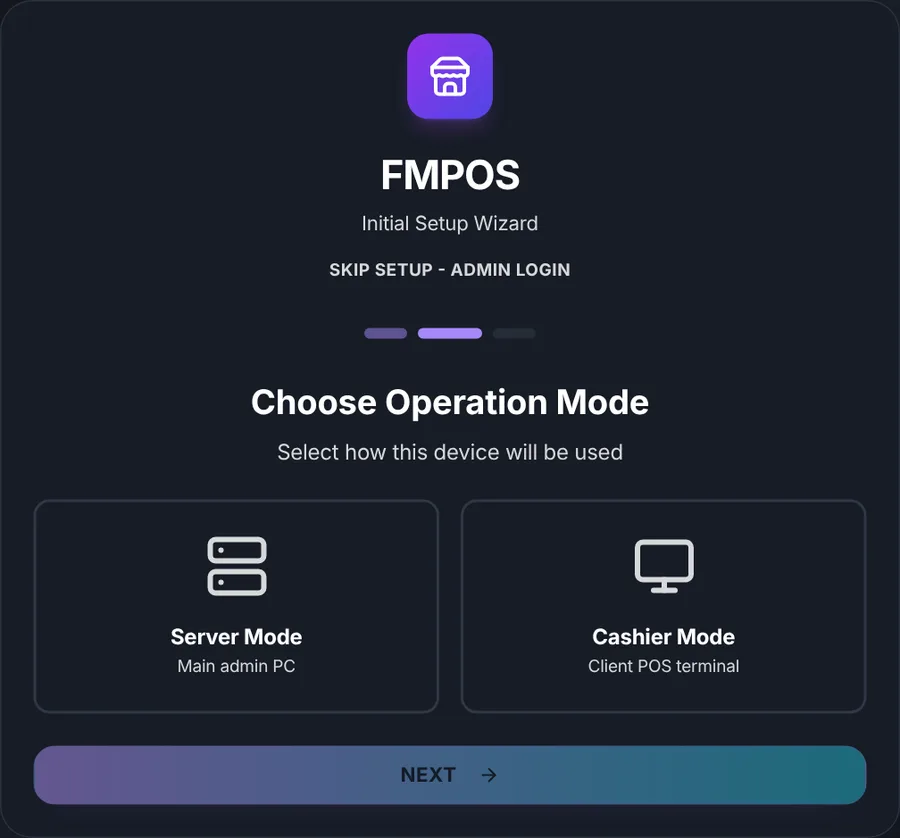
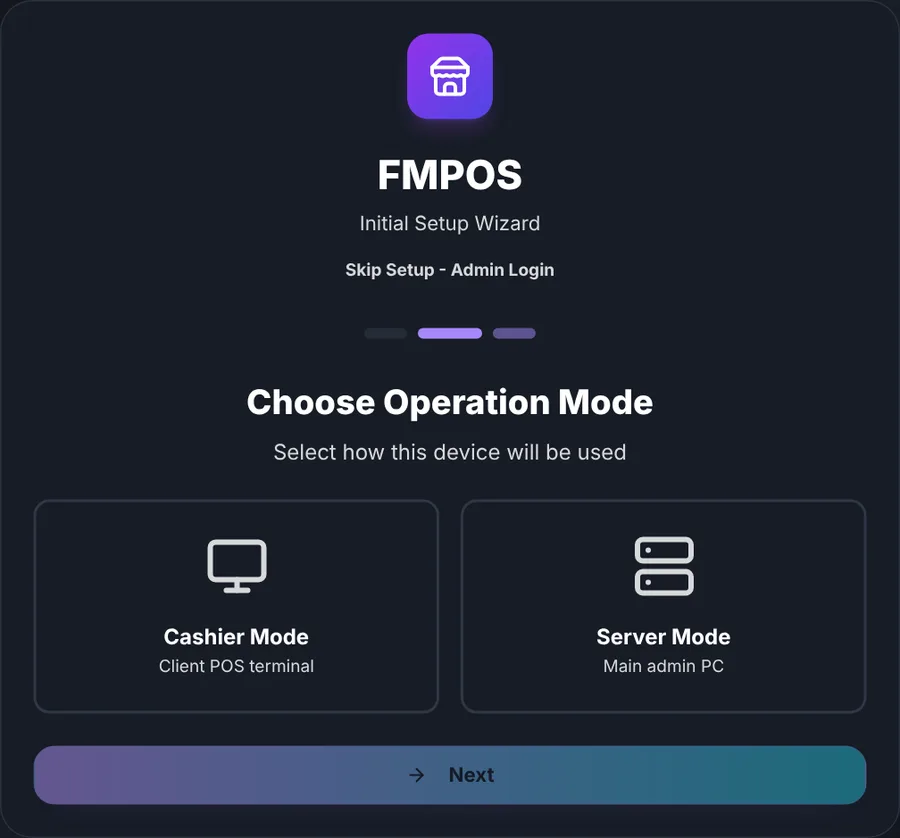
اختار "Server Mode"Choose "Server Mode"
أول ما يفتح البرنامج بيسألك شو دور هالكمبيوتر. على الكمبيوتر الأساسي اختار Server Mode، وبعدها Next.When FMPOS opens the first time, it asks what this computer is for. On the main computer choose Server Mode, then Next.
-
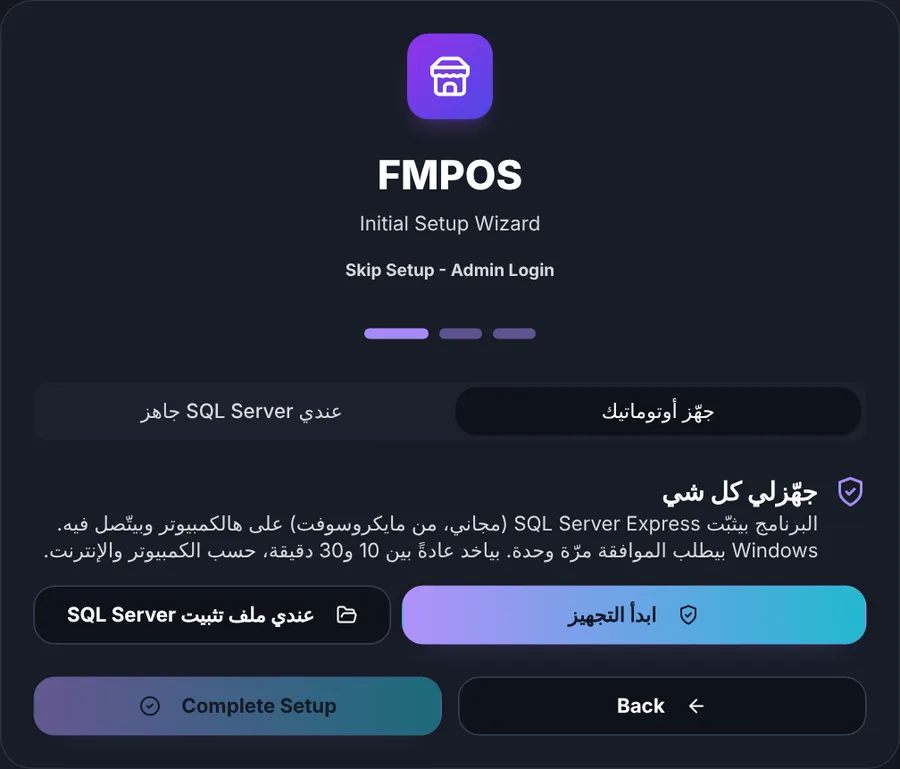
"جهّز أوتوماتيك" وابدأ"Set up automatically", then start
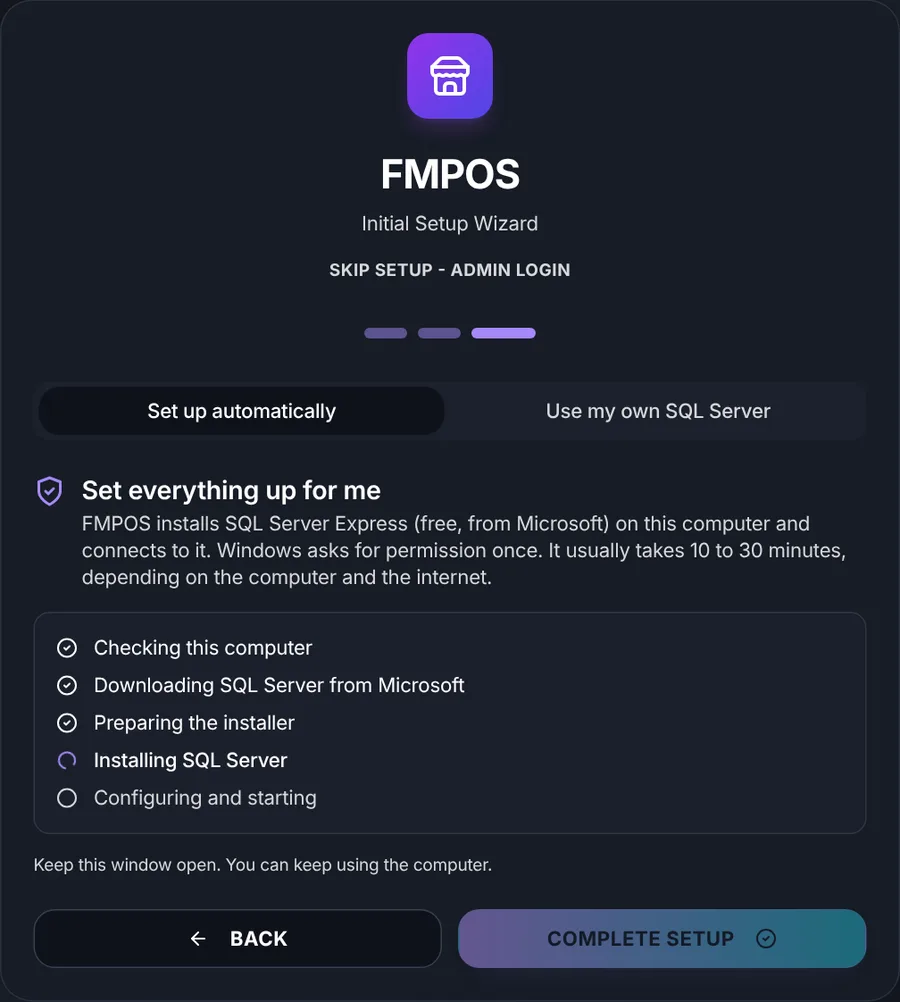
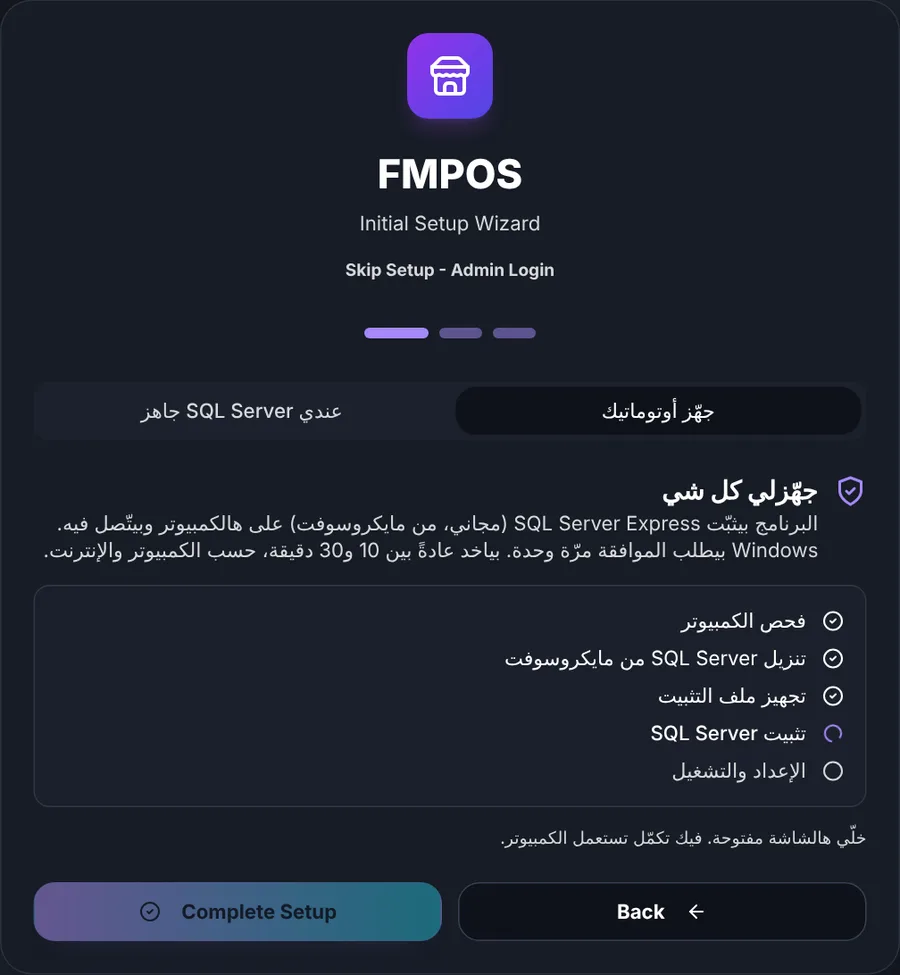
خلّي الخيار على جهّز أوتوماتيك واكبس ابدأ التجهيز. البرنامج بينزّل SQL Server (مجاني، من مايكروسوفت) وبيثبّتو وبيجهّزو.Keep Set up automatically selected and click Start setup. FMPOS downloads SQL Server (free, from Microsoft), installs it and sets it up.
Windows بيطلب الموافقة مرة وحدة: اكبس Yes.Windows asks for permission once: click Yes.
إذا عندك SQL Server مثبّت من قبل، اختار عندي SQL Server جاهز: البرنامج بيبيّنلك يلي على الكمبيوتر وبتختار منّن.If SQL Server is already installed, choose Use my own SQL Server: FMPOS lists what is on this computer and you pick one.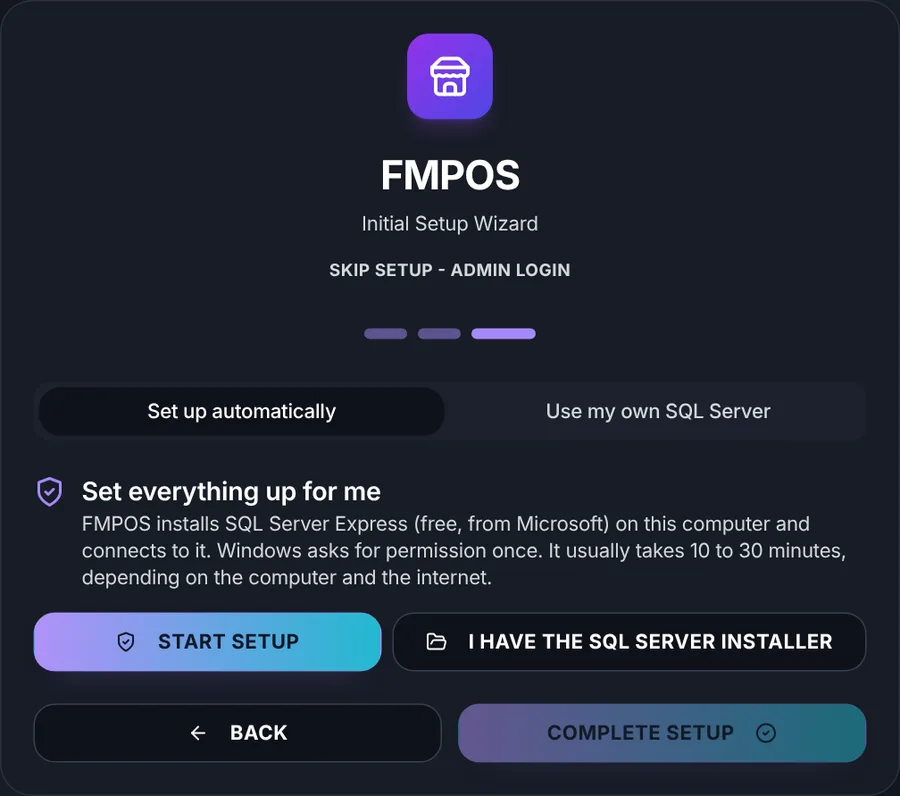
-
استنّى لحتى يخلصWait until it finishes
كل خطوة بتتعلّم ✓ لما تخلص. التثبيت هو الأطول: بين 10 و30 دقيقة حسب الكمبيوتر والإنترنت.Each step gets a ✓ when it is done. Installing is the longest part: 10 to 30 minutes depending on the computer and the internet.
- خلّي هالشاشة مفتوحة. فيك تستعمل الكمبيوتر لشي تاني.Keep this window open. You can use the computer for something else.
- لا تطفي الكمبيوتر ولا تفصل الإنترنت بالنص.Do not turn the computer off or disconnect the internet meanwhile.
-
اسم المحل وحسابكYour store name and your account
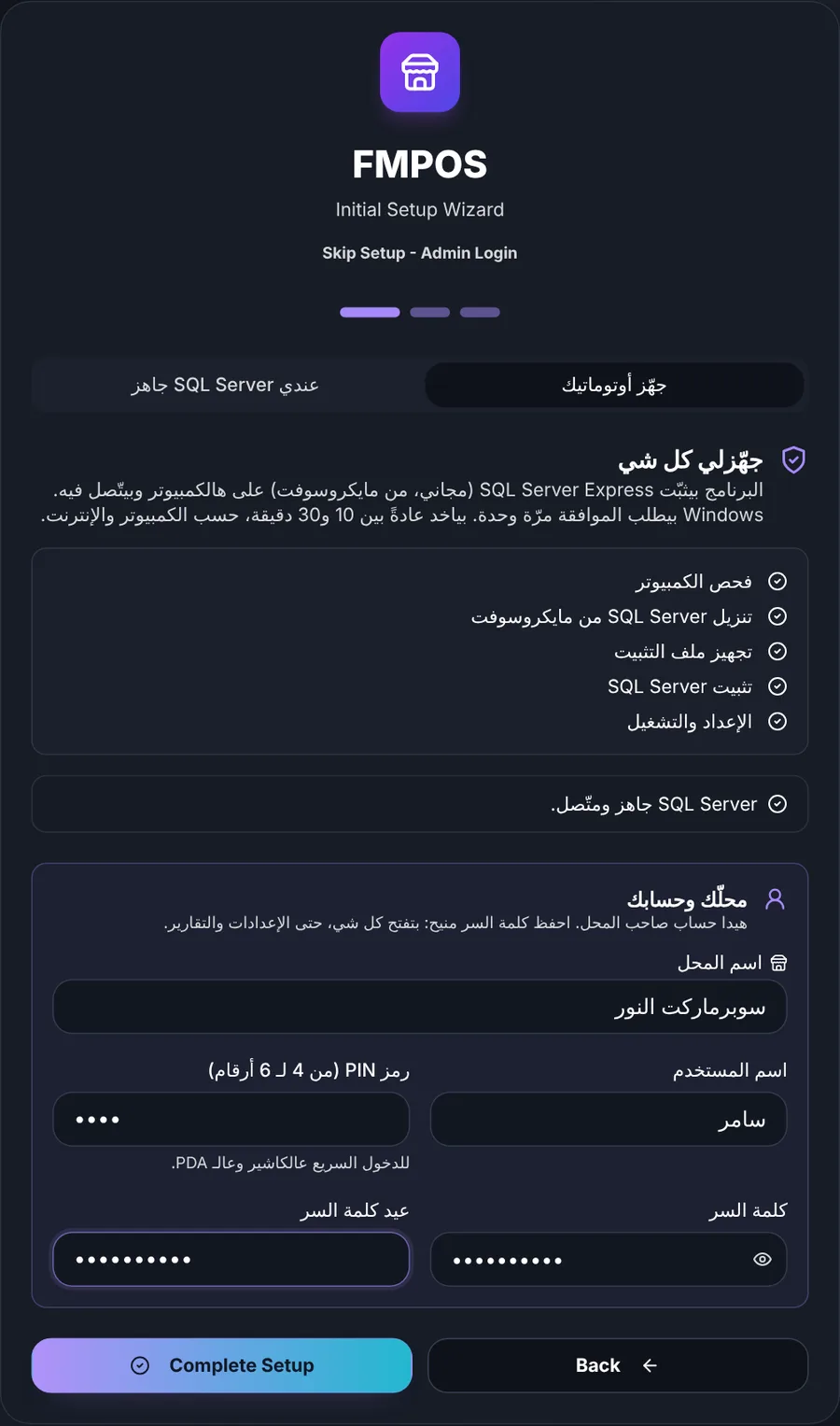
لما يطلع SQL Server جاهز ومتّصل، عبّي:When SQL Server is ready and connected appears, fill in:
- اسم المحل: متل ما بدك ينكتب على الفاتورة.Store name: as it should appear on receipts.
- اسم المستخدم وكلمة السر: حساب صاحب المحل، بيفتح كل شي.User name and password: the owner account, it opens everything.
- PIN من 4 لـ 6 أرقام: للدخول السريع عالكاشير وعالـ PDA.A PIN of 4 to 6 digits: quick sign-in at the cashier and on the PDA.
بعدها اكبس Complete Setup، وفوت بالاسم وكلمة السر يلي اخترتهن.Then click Complete Setup and sign in with the name and password you chose.
احفظ كلمة السر بمكان آمن. هيي مفتاح الحسابات والتقارير والإعدادات.Keep the password somewhere safe. It is the key to the accounts, reports and settings.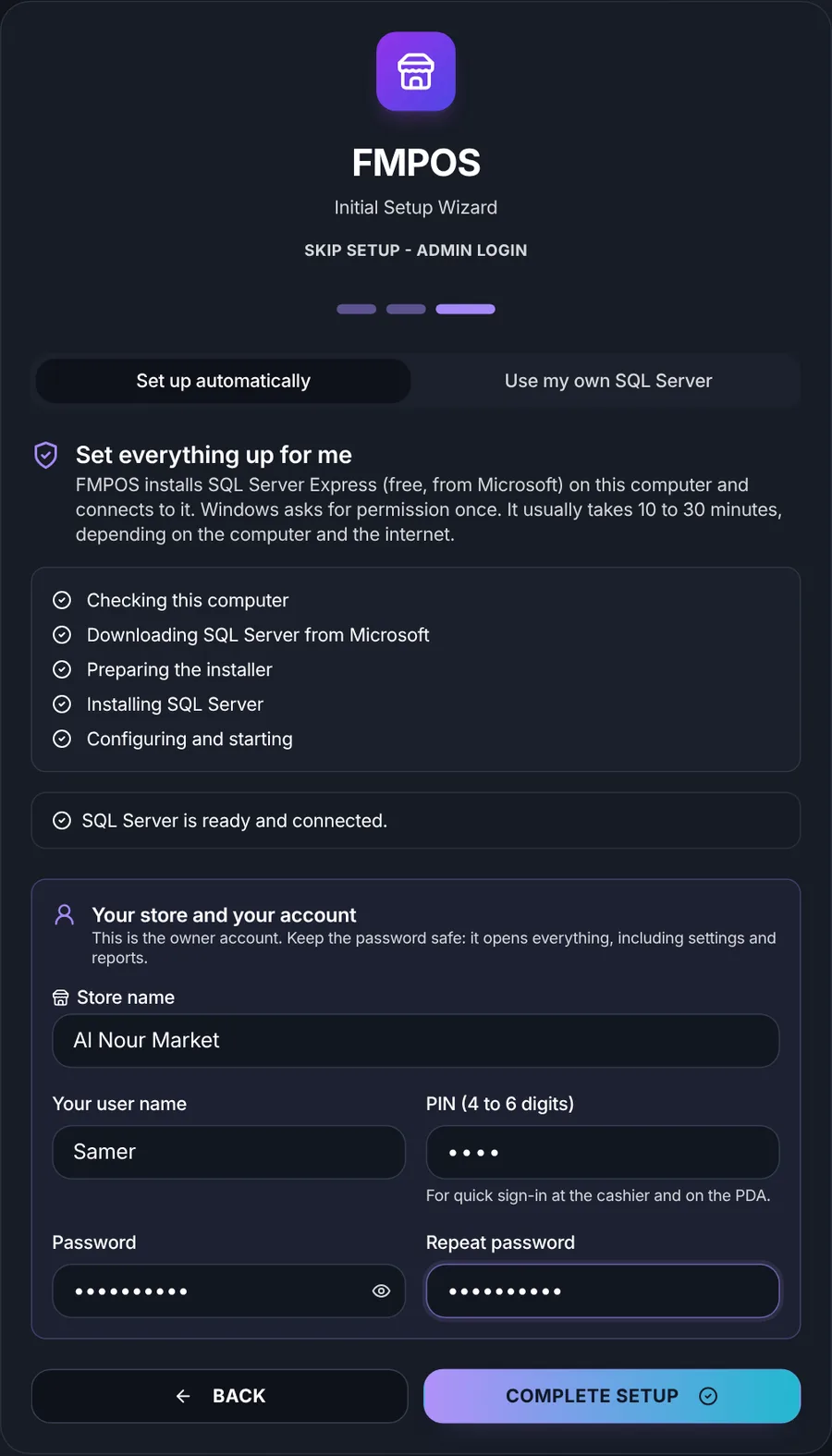
-
فعّل الترخيصActivate the license
من الإعدادات ← الترخيص: إمّا ابدأ التجربة المجانية (15 يوم، بدون أي دفع)، أو حطّ رمز التفعيل يلي بيوصلك منّا لما تشتري.In Settings → License: either Start the free trial (15 days, no payment), or enter the activation code we send you when you buy.
الترخيص بيتسجّل على السيرفر، وأجهزة الكاشير بتاخدو منّو لحالها.The license lives on the server; cashier computers get it from there by themselves.
Part 2أجهزة الكاشيرCashier computers
على كل كمبيوتر كاشير، والسيرفر شغّال وعلى نفس الشبكة.On each cashier computer, with the server on and on the same network.
-
ثبّت نفس الملف، واختار "Cashier Mode"Install the same file and choose "Cashier Mode"
نفس ملف التثبيت. أول ما يفتح، اختار Cashier Mode وبعدها Next. الكاشير ما بيحتاج SQL Server.The same installer. When it opens, choose Cashier Mode, then Next. A cashier does not need SQL Server.
-
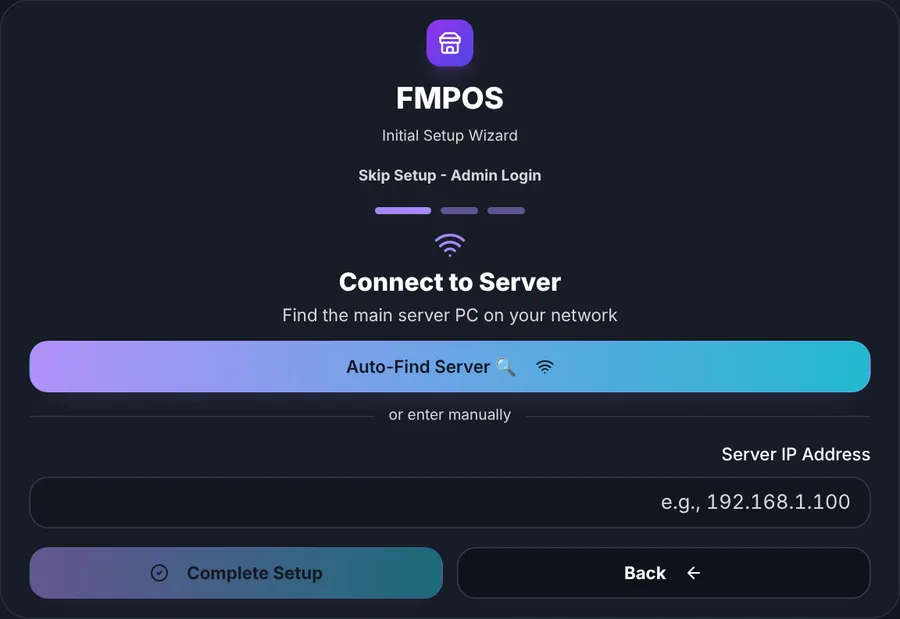
"Auto-Find Server" وفوت"Auto-Find Server", then sign in
اكبس Auto-Find Server: البرنامج بيدوّر على السيرفر بالشبكة وبيختارو. إذا ما لقاه، اكتب عنوان السيرفر (IP) بإيدك، متل 192.168.1.10.Click Auto-Find Server: FMPOS looks for the server on the network and picks it. If it is not found, type the server address (IP), e.g. 192.168.1.10.
بعدها Complete Setup، وكل موظف بيفوت بالـ PIN تبعو.Then Complete Setup, and each employee signs in with their PIN.
إذا انقطع الاتصال بالسيرفر، الكاشير بيضل يبيع، وبيبعت الفواتير لما يرجع الاتصال.If the connection to the server drops, the cashier keeps selling and sends the invoices when it is back.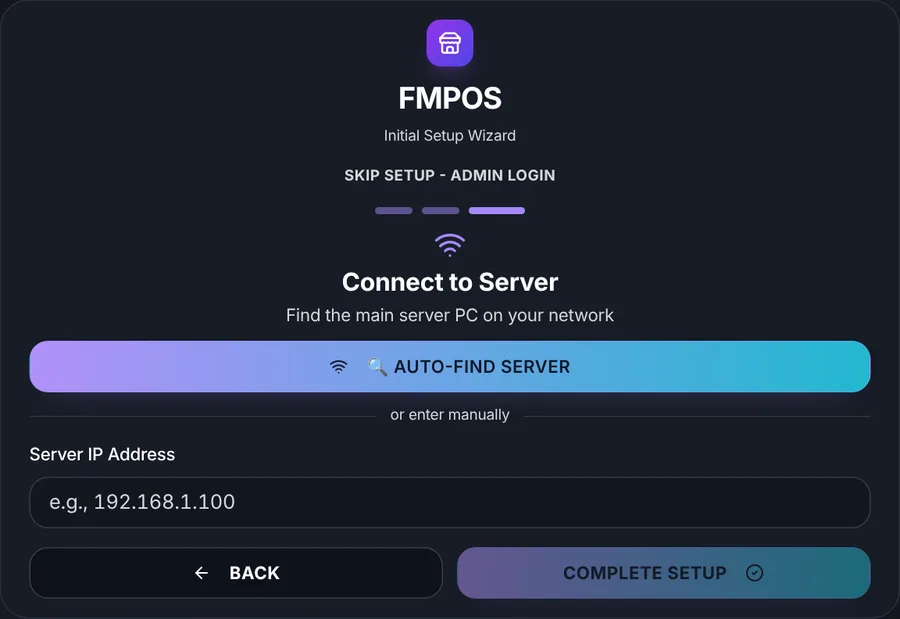
Helpمشاكل شائعةCommon problems
التثبيت عم يطوّل كتيرThe setup is taking very long
طبيعي ياخد لـ 30 دقيقة، وعلى كمبيوتر قديم أكتر. طالما الشاشة ما طلّعت خطأ، اتركها تكمّل.Up to 30 minutes is normal, more on an older computer. As long as no error is shown, let it finish.
طلعتلي "ما في اتصال بالإنترنت"It says there is no internet connection
صلّح الإنترنت واكبس جرّب مرّة تانية. أو إذا عندك ملف تثبيت SQL Server Express، اكبس عندي ملف تثبيت SQL Server واختارو.Fix the internet and click Try again. Or, if you have the SQL Server Express installer, click I have the SQL Server installer and pick it.
الكاشير ما عم يلاقي السيرفرThe cashier cannot find the server
تأكّد إنو البرنامج مفتوح على السيرفر، وإنو الجهازين على نفس الراوتر. إذا بعد ما لقاه، اكتب IP السيرفر بإيدك. بتلاقيه على السيرفر بالأمر ipconfig.Make sure FMPOS is open on the server and both computers are on the same router. If it still is not found, type the server IP by hand; you can see it on the server with the ipconfig command.
نسيت كلمة السرI forgot the password
فوت بالـ PIN إذا بتتذكّرو، وغيّر كلمة السر من الإعدادات. إذا لا، احكينا.Sign in with your PIN if you remember it and change the password in Settings. Otherwise, contact us.
بدّي غيّر كمبيوتر السيرفرI want to replace the server computer
اعمل نسخة احتياطية (Backup) من الإعدادات قبل. بعدها احكينا لننقل الترخيص على الكمبيوتر الجديد.Make a backup from Settings first. Then contact us so we move the license to the new computer.
علقت بشي خطوة؟Stuck on a step?
ابعتلنا صورة عن الشاشة، ومنساعدك.Send us a photo of the screen and we will help.